Lecture 2 - Hello Shell!
Intro
And the survey says...
- Cold calling
- High weight on exams, no curve
- Rust :-P
- Office hour availability
- Cancelling the project
- Regrading and corrections
- 4 "free" absenses
- AI / collaboration policy
- Late policy
- Course content changes
- Coffee slots :-)
- Oral re-exams
- No curve / grade quotas
- Homework grading approach
- Participation credit
Some FAQs
Common questions
- Exam format and content
- How I learned your names
- Where are recordings / lecture notes
- Partial credit / extra credit
- How bad til exams get a curve?
Some more points to note
- Gradescope vs GitHub Classroom
- Lecture notes for A vs B
I promise to revisit these Monday:
- Prework
- Homework and exam schedule
Motivation
What is the terminal?
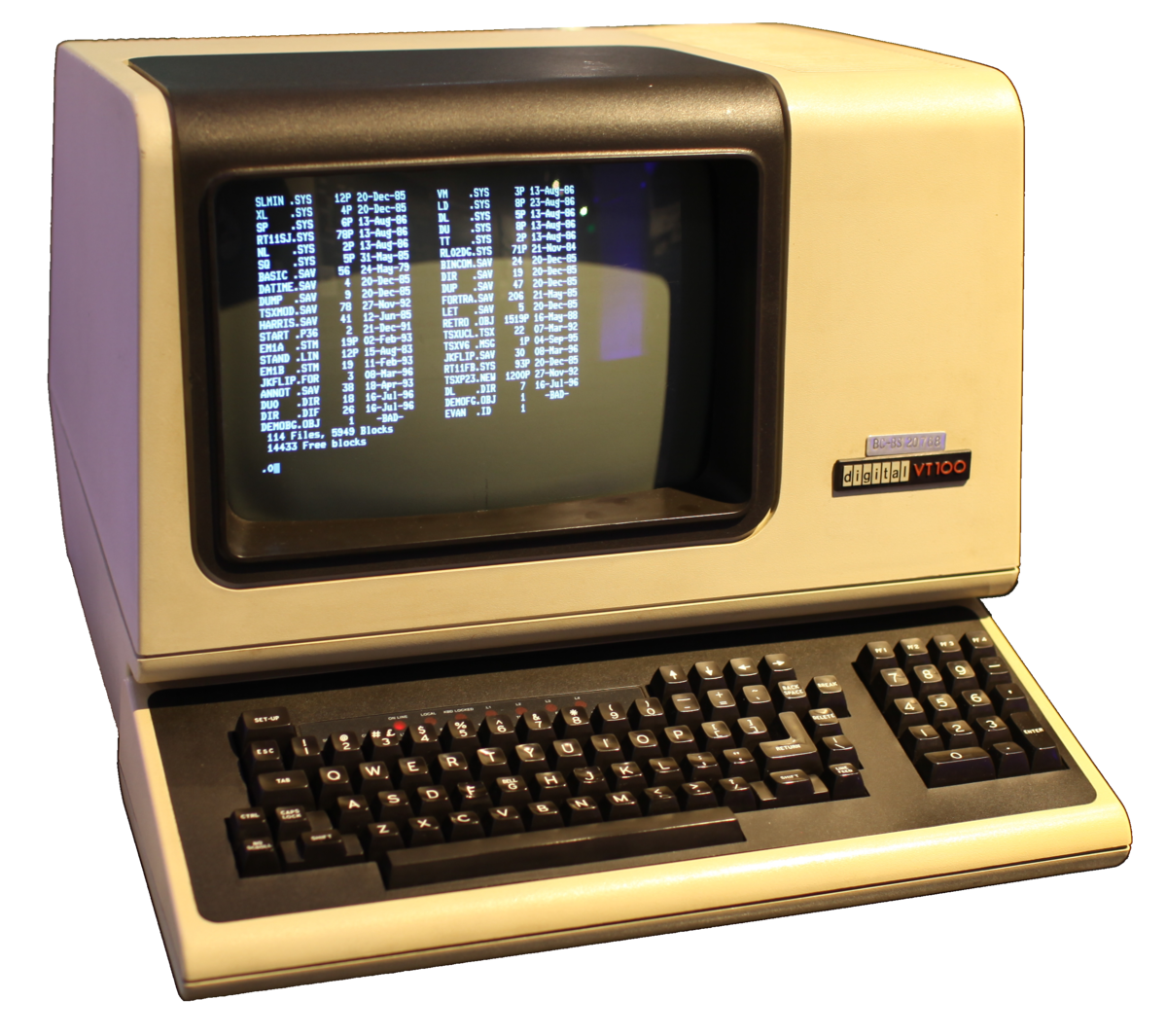
What is the terminal?
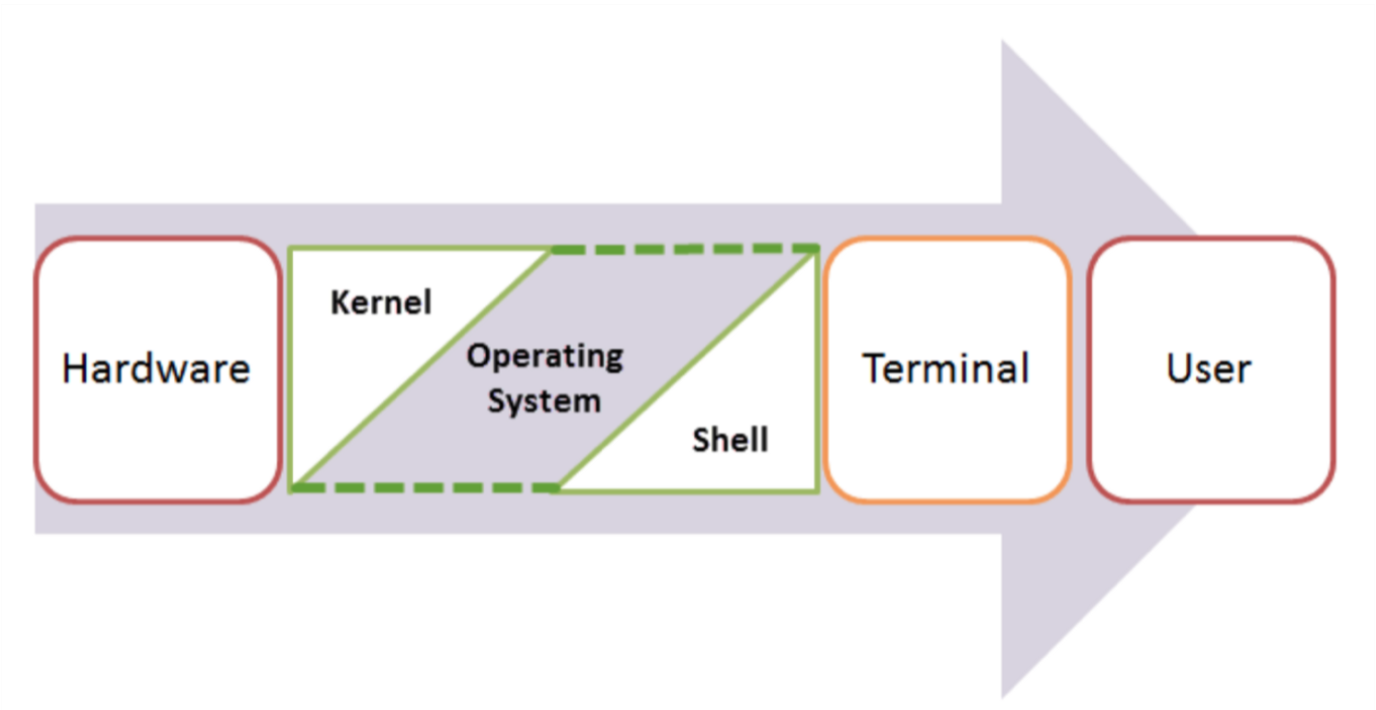
... the kitchem metaphor
Shell, Terminal, Console, Command line... and what's Bash?
- The command line is the interface where you type commands to interact with your computer.
- The command prompt is the character(s) before your cursor that signals you can type and can be configured with other reminders.
- The terminal or console is the program that opens a window and lets you interact with the shell.
- The shell is the command line interpreter that processes your commands. (You might also encounter "a command line" in text-based games)
Terminals are more like applications and shells are more like languages.
Shell, Terminal, Console, Command line... and what's Bash?
Terminals come in proper nouns:
- Terminal (macOS)
- iTerm2 (macOS)
- GNOME Terminal (Linux)
- Konsole (Linux)
- Command Prompt (Windows)
- PowerShell (Windows)
- Git Bash (Windows)
Shells also come in proper nouns:
- Bash (Bourne Again SHell) - most common on Linux and macOS
- Zsh (Z Shell) - default on modern macOS
- Fish (Friendly Interactive SHell) - user-friendly alternative
- Tcsh (TENEX C Shell) - popular on some Unix systems
- PowerShell - advanced shell for Windows
Shell, Terminal, Console, Command line... and what's Bash?
BUT they are often used interchangeably in speech:
- "Open your terminal"
- "Type this command in the shell"
- "Run this in the command line"
- "Execute this in your console"
What is this all good for?
Lightning fast navigation and action
# Quick file operations
ls *.rs                    # Find all Rust files
grep "TODO" src/*.rs       # Search for TODO comments across files
wc -l data/*.csv          # Count lines in all CSV files
- How would you to this "manually"?
It's how we're going to build and manage our rust projects
# Start your day
git pull                          # Get latest team changes
cargo test                        # Make sure everything still works
# ... code some features ...
cargo run                         # Test your new feature
git add src/main.rs               # Stage your changes
git commit -m "Add awesome feature"  # Save your work
git push                          # Share with the team
For when your UI just won't cut it
- Confused by "invisible files" and folders?
ls -la
For when your UI just won't cut it
- Need to find a file where you wrote something a while ago
grep -r "that thing I wrote 6 months ago"
- Modify lots of files at once
# Rename 500 photos at once
for file in *.jpg; do mv "$file" "vacation_$file"; done

# Delete all files older than 30 days
find . -type f -mtime +30 -delete
- "Why is my computer fan running like it's about to take off?"
df -h              # See disk space usage immediately
ps aux | grep app  # Find that app that's hogging memory
top                # Live system monitor
In other words, the command line provides:
- Speed: Much faster for repetitive tasks
- Precision: Exact control over file operations
- Automation: Commands can be scripted and repeated
- Remote work: Essential for server management
- Development workflow: Many programming tools use command-line interfaces
Learning objectives for today (TC 12:30)
By the end of this lecture, you should be able to:
- Navigate your file system on the command line
- Create, copy, move, and delete files and directories at the command line
- Interpret file permissions
- Use pipes and redirection for basic text processing
We will also discuss, but you are not responsible for:
- Customizing your shell profile with aliases and functions
- Writing simple shell scripts
 We'll have one of these slides every lecture and it's a great way to check in on what material you're responsible for for exams!
The file system and navigation
Everything starts at the root
Root Directory (/):
In Linux, the slash character represents the root of the entire file system.
(On a Windows machine you might see "C:" but on Linux and MacOS it is just "/".)
(We'll talk more about Windows in a minute)
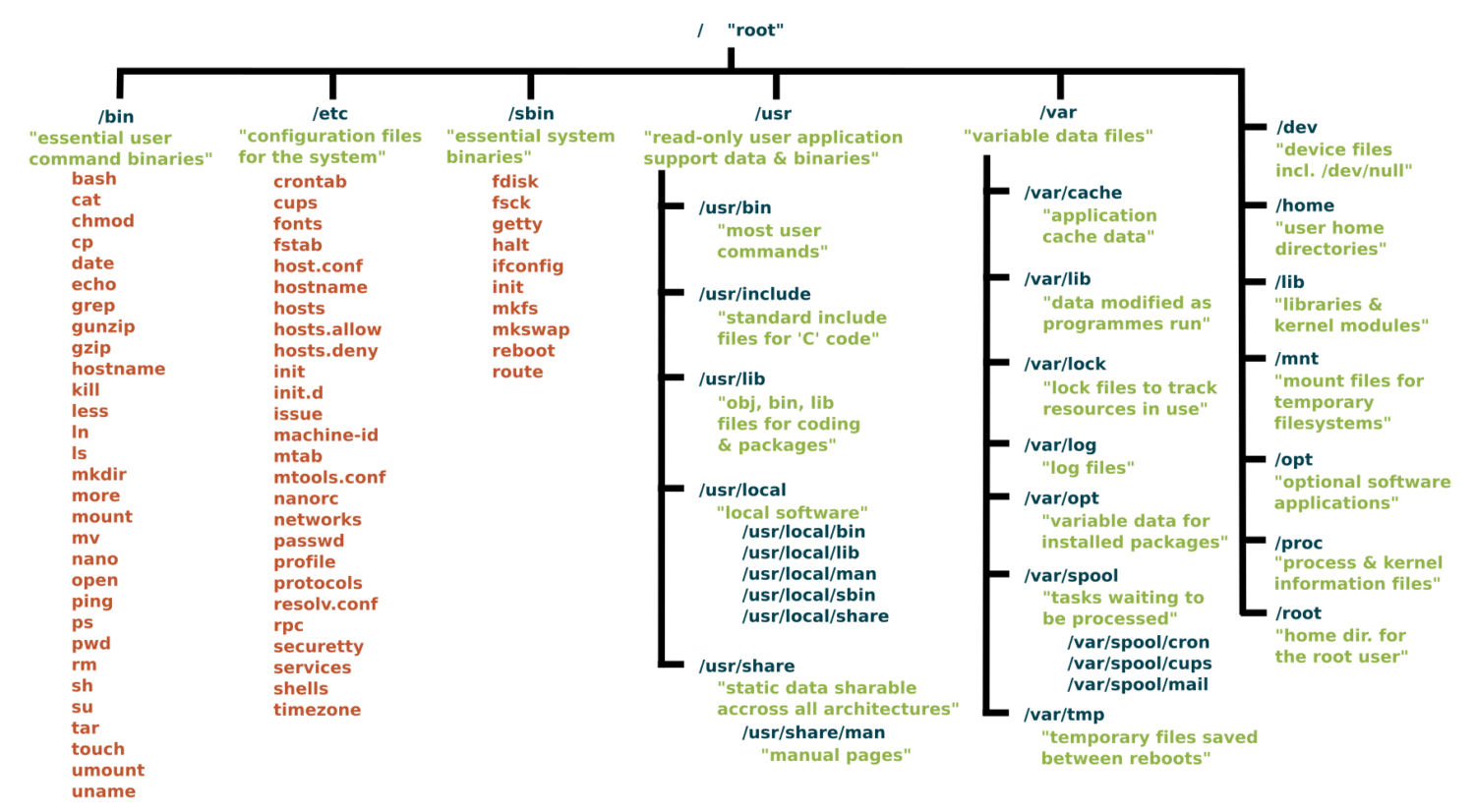
Key Directories You'll Use:
/                          # Root of entire system
├── home/                  # User home directories
│   └── username/          # Your personal space
├── usr/                   # User programs and libraries
│   ├── bin/              # User programs (like cargo, rustc)
│   └── local/            # Locally installed software
└── tmp/                  # Temporary files
Navigation Shortcuts:
~= Your home directory.= Current directory..= Parent directory/= Root directory
Let's take a look / basic navigation demo
Demo time! First let's look at the command prompt...
Maybe half of your interactions with the shell will look like:
pwd                   # Print working directory
ls                    # List files in current directory
ls -a                 # List files including hidden files
ls -al                # List files with details and hidden files
cd directory_name     # Change to directory
cd ..                 # Go up one directory
cd ~                  # Go to home directory
Tips:
- Use
Tabfor auto-completion (great for paths!) - Use
Up Arrowto access command history - Try
control-cto abort something running or clear a line - You can't click into a line to edit it, use left/right arrows (or vim, or copy-paste)
What's going on here?
The command line takes commands and arguments.
ls -la ~
The grammer is like a command in English: VERB (NOUN) ("eat", "drink water", "open door")
ls is the command, -la and ~ are arguments.
Flags / Options
Special arguemnts called "options" or "flags" usually start with a dash - and can be separate or combined. These are equivalent:
ls -la
ls -al
ls -a -l
ls -l -a
BUT they typically need to come before other arguemnts:
ls -l -a ~   # works!
ls -l ~ -a   # does not work
Let's pause for the elephant in the room
- macOS is built on Unix
- Windows is entirely different
dirinstead oflscopyandmoveinstead ofcpandmv
- We strongly recommend Windows users install a terminal with
bash(we'll do it today!) so we can speak the same language.
One thing is unavoidable: different paths
/vsC:\Users\(vote for which is a back slash!)- This incompatibility has caused more suffering than metric vs imperial units.
Essential Commands for Daily Use (TC 12:35)
Quiz time!
What do these stand for and what do they do:
pwdcdls
And
- How can you "get home quickly"?
These slides make a great starting point for Anki questions!
Reverse, reverse!
- How can you see what directory you're in?
- How can you look around to see what's in the folder?
- How can you go into one of those folders?
- How can you back out?
- How can you see hidden files?
The rest of the 80% of bash commands you will mostly ever use
Demo time!
mkdir project_name        # Create directory
mkdir -p path/to/dir      # Create nested directories
touch notes.txt        # Create empty file
echo "Hello World" > notes.txt  # Overwrite file contents
echo "It is me" >> notes.text   # Append to file content

cat filename.txt          # Display entire file
head filename.txt         # Show first 10 lines
tail filename.txt         # Show last 10 lines
less filename.txt         # View file page by page (press q to quit)
nano filename.txt          # Edit a file

cp file.txt backup.txt    # Copy file
mv old_name new_name      # Rename/move file
rm filename               # Delete file
rm -r directory_name      # Delete directory and contents
rm -rf directory_name     # Delete dir and contents without confirmation
Understanding ls -la Output
-rw-r--r-- 1 user group 1024 Jan 15 10:30 filename.txt
drwxr-xr-x 2 user group 4096 Jan 15 10:25 dirname
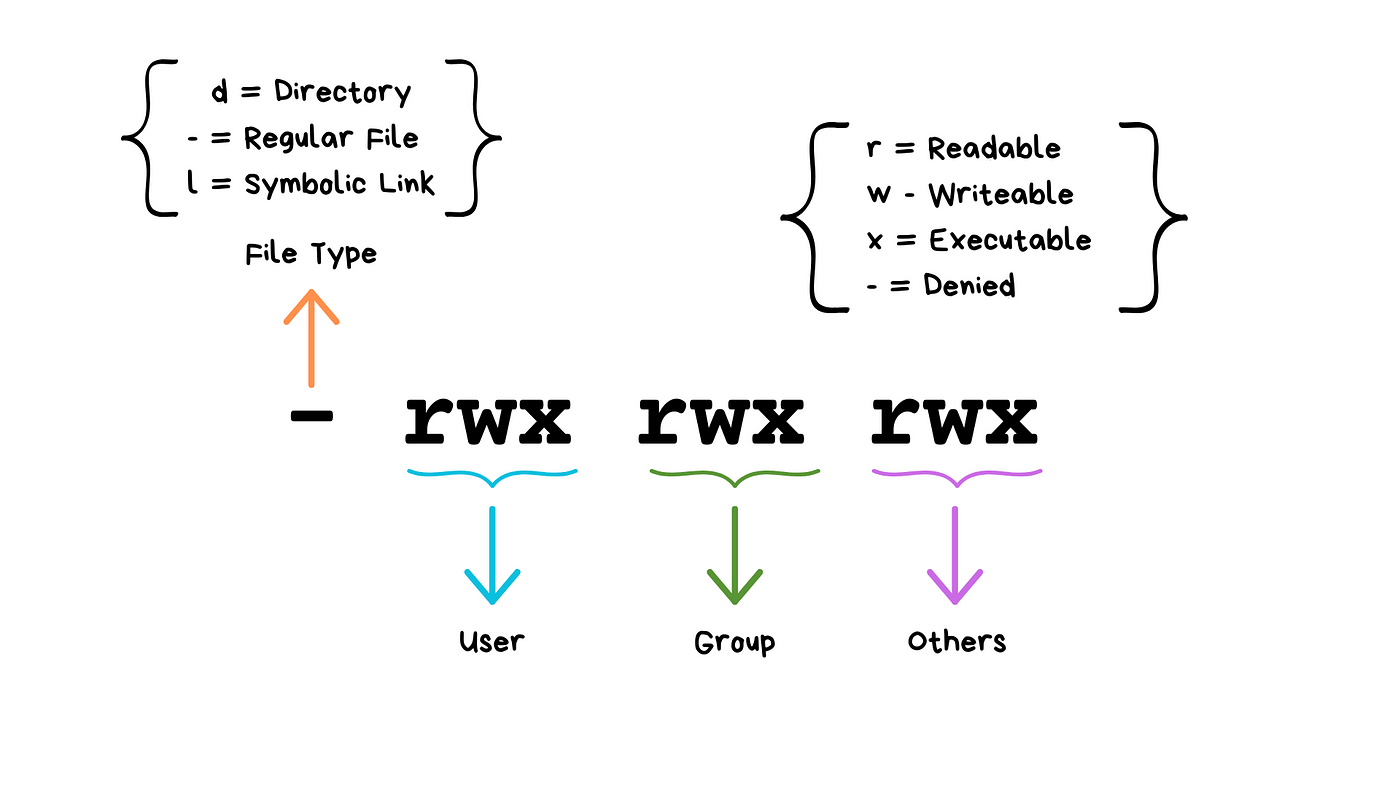
(Don't worry about "groups"!)
We will see these kinds of permissions again in Rust programming!
Common Permission Patterns
644orrw-r--r--: Files you can edit, others can read755orrwxr-xr-x: Programs you can run, others can read/run600orrw-------: Private files only you can access
(Any guesses about the numeric codes?)
Don't have permission? Don't tell anyone I told you this but...
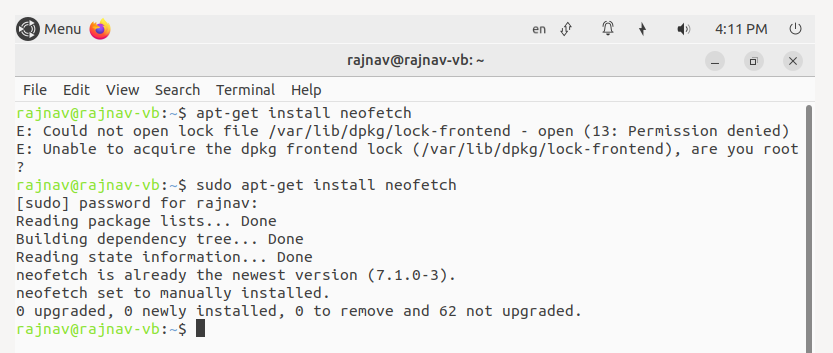
Don't have permission? Don't tell anyone I told you this but...
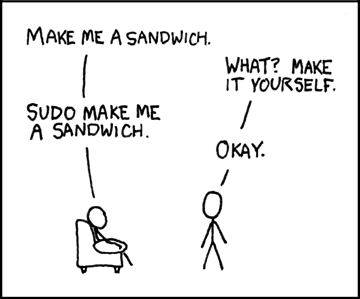
- What do you think
sudostands for?
One list thing... Combining Commands with Pipes
ls | grep ".txt"          # List only .txt files
cat file.txt | head -5    # Show first 5 lines of file
ls -l | wc -l            # Count number of files in directory
Combining Commands with Pipes
More Examples:
# Find large files
ls -la | sort -k5 -nr | head -10

# Count total lines in all text files
cat *.txt | wc -l
So tell me, what's the difference...
ls -la | wc -l
ls -la > results.txt
FYI (TC 12:45 or skip)
For your awareness - Your Shell Profile
Understanding Shell Configuration Files:
Your shell reads a configuration file when it starts up. This is where you can add aliases, modify your PATH, and customize your environment.
Common Configuration Files:
- macOS (zsh):
~/.zshrc - macOS (bash):
~/.bash_profileor~/.bashrc - Linux (bash):
~/.bashrc - Windows Git Bash:
~/.bash_profile
Finding Your Configuration File:
It's in your Home directory.
# Check which shell you're using (MacOS/Linus)
echo $SHELL

# macOS with zsh
echo $HOME/.zshrc

# macOS/Linux with bash
echo $HOME/.bash_profile
echo $HOME/.bashrc
Adding aliases to you shell profile
# Edit your shell configuration file (choose the right one for your system)
nano ~/.zshrc        # macOS zsh
nano ~/.bash_profile # macOS bash or Git Bash
nano ~/.bashrc       # Linux bash

# Add these helpful aliases:
alias ll='ls -la'
alias ..='cd ..'
alias ...='cd ../..'
alias projects='cd ~/development'
alias rust-projects='cd ~/development/rust_projects'
alias grep='grep --color=auto'
alias tree='tree -C'

# Custom functions
# This will make a directory specified as the argument and change into it
mkcd() {
    mkdir -p "$1" && cd "$1"
}
Modifying your PATH
You may need to do this occasionally to make tools you install available on the command line.
# Add to your shell configuration file
export PATH="$HOME/bin:$PATH"
export PATH="$HOME/.cargo/bin:$PATH"    # For Rust tools (we'll add this later)

# For development tools
export PATH="/usr/local/bin:$PATH"
Applying Changes:
# Method 1: Reload your shell configuration
source ~/.zshrc        # For zsh
source ~/.bash_profile # For bash

# Method 2: Start a new terminal session
# Method 3: Run the command directly
exec $SHELL
Shell scripts
Shell script files typically use the extension *.sh, e.g. script.sh.
Shell script files start with a shebang line, #!/bin/bash.
#!/bin/bash

echo "Hello world!"
To execute shell script you can use the command:
source script.sh
Before it gets noisy in here... (TC 12:50)
- What does
drwxr-xr-xmean? - How can I quickly write "I'm awesome" to my
affirmations.txtfile? - How can I delete my
file_of_secrets.txtbefore the cops get here? - How can I rename my
file_of_secrets.txtso it "disappears"? - How can I find it again?
In-Class Activity: Shell Challenge
In groups of 2-3, go to https://github.com/lauren897/ds210-fa25-b and complete the challenge.
Remember to submit on gradescope (once per group)! (There's a grace period til 1:30)
Coming up -
- Monday: git and GitHub
- Releasing HW1 (exact dates TBD but we'll give at least a full week)
- We start Rust on Wednesday!
- Wednesday also starts pre-work, we'll explain more on Monday
- I'll post a coffee slot sign-up sheet tonight
- I'll have lecture notes / a site set up by Monday